Bots
Bot APIs serve multiple purposes, including creating, verifying, and retrieving bots. Additionally, they facilitate communication with the bot through messages, welcome banners, and more.
Want to create a new bot? Then use this POST
https://v1-api.swiftchat.ai/api/botsAPI. Ensure to include parameters like mobile number and configuration details such as name and category.
{
"mobile": "<bot-mobile-number>",
"configuration": {
    "name": "<bot-name>",
    "category": "<category of the bot>"
}
}
Upon successful creation of the bot, you will receive a 201 status code along with a message Created.
https://v1-api.swiftchat.ai/api/bots/verifyThis POST API is utilized to verify the mobile number associated with your newly created bot. To varify your bot you need to provide mobile number and the OTP that you received in the body.Body:
{
"mobile": "<bot-mobile-number>",
"otp": "<otp>"
}
On successfull varification you will receive the bot ID.
Response:
{
"id": "0295758414350769"
}
If you want to gather information about all the bots linked to your merchant-id, you can use the GET API endpoint:
https://v1-api.swiftchat.ai/api/merchants/<merchant-id>/bots. Simply provide your merchant-id along with the API. This API will retrieve details such as the name, id, and phone number of all your bots.Response:
{
"data": [
{
  "name": "Test Bot",
  "bot_id": "0295758414350769",
  "mobile": "+91XXXXXXXXXX"
},
{
  "name": "Test Bot 2",
  "bot_id": "0221741349325852",
  "mobile": "+91XXXXXXXXXX"
}
]
}
To collect all the information about a specific bot, utilize the following GET API:
https://v1-api.swiftchat.ai/api/bots/<bot-id>/configuration, inserting your bot’s id. This will help you get information such has bot name, id, welcome message, buttons, photo, banner and more.Response
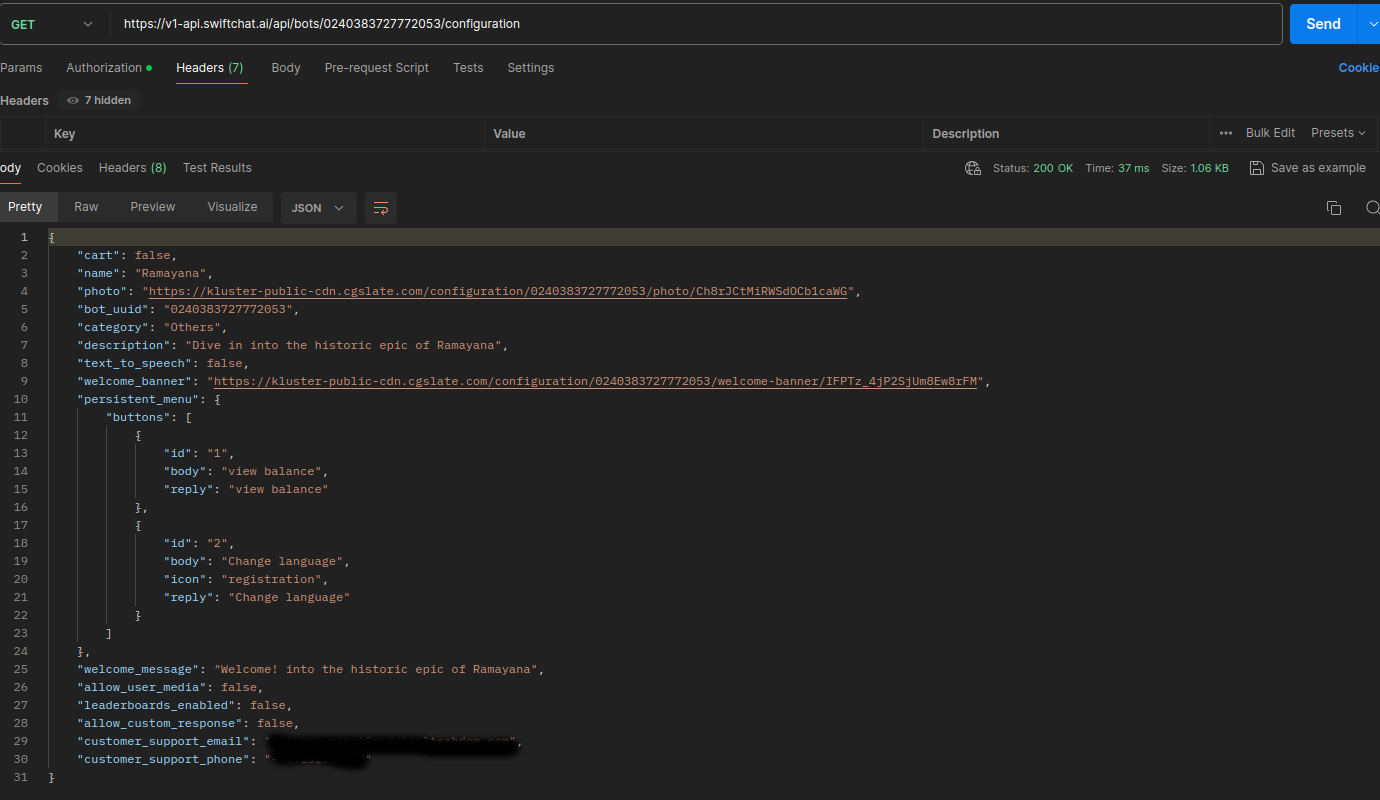
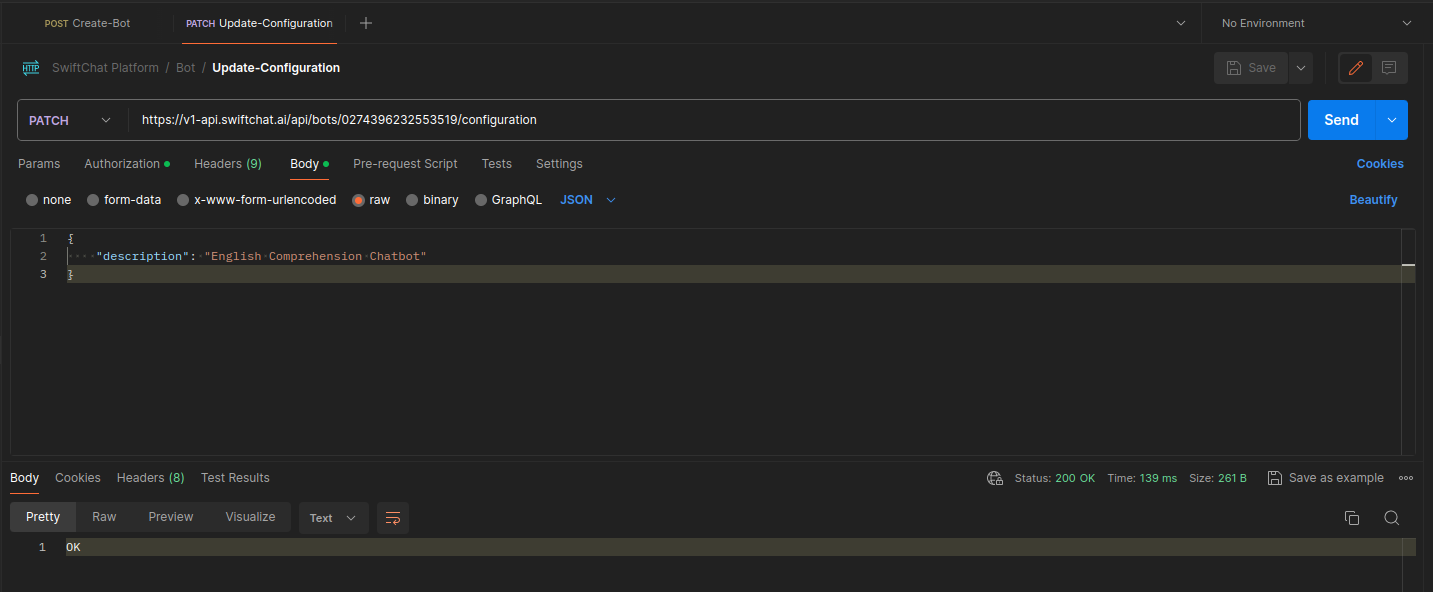
If you need to modify configuration settings for a bot such as name, description, category, and persistent menu, you can do so by using the PATCH method with the API endpoint:
https://v1-api.swiftchat.ai/api/bots/<bot-id>/configuration.Let’s say for example if you want to update the description of the bot, then follow below image:
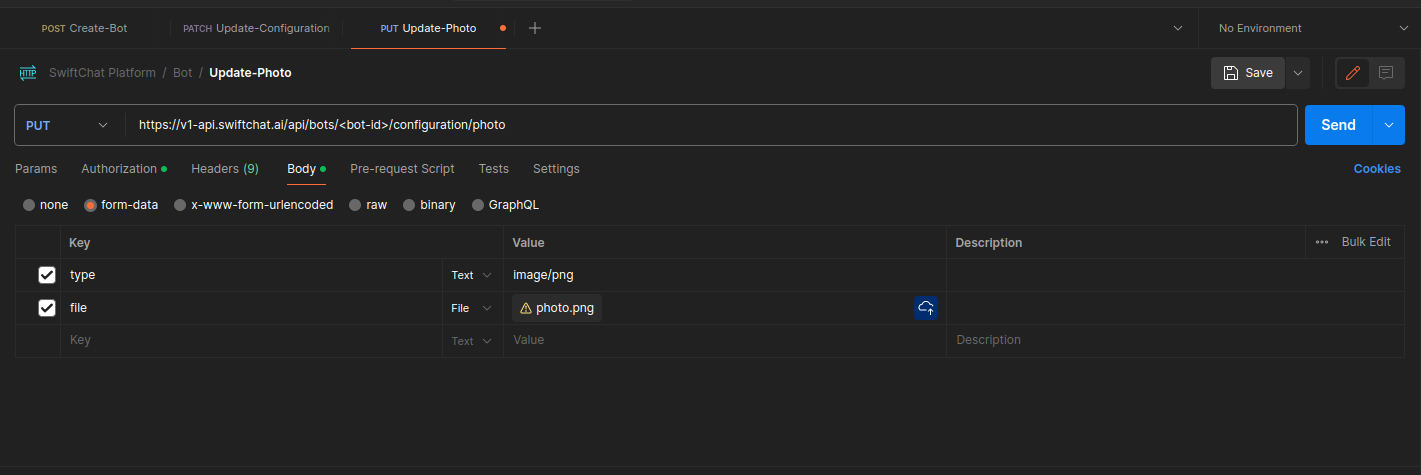
Update the bot icon photo using this PUT
https://v1-api.swiftchat.ai/api/bots/<bot-id>/configuration/photoAPI with the bot-id. Provide the image type and image URL/file in form data format, you can use a key-value pair structure. You will be get the message “Ok” on successful updation.Note
The supported file formats are PNG and JPEG.
The maximum size limit: 1 MB
You can update the welcome banner similarly as you updated the bot icon photo. For this use this PUT
https://v1-api.swiftchat.ai/api/bots/<bot-id>/configuration/welcome-bannerAPI with the bot-id. Provide image type and url in form data format. You will be get the message “Ok” on successful updation.Note
The supported file formats are PNG and JPEG.
The maximum size limit: 1 MB
Get your Webhook Url associated with the bot-id using this GET
https://v1-api.swiftchat.ai/api/bots/<bot-id>/webhook-urlAPI with your bot-id.Response:
{
"webhook_url": "https://test.com/webhook"
}
Get the shareable link of your bot and use it for different purposes, using this GET
https://v1-api.swiftchat.ai/api/bots/<bot-id>/shareable-linkAPI.Response:
{
"shareable_link": "https://cgweb.page.link/?link=https%3A%2F%2Fweb.convegenius.ai%3FbotId%3D0295758414350769&apn=ai.convegenius.app"
}